Set up device - advanced
Access the device through SSH
Developing an ACAP application often requires SSH access to the device for debugging, testing, and running command-line operations in AXIS OS. To support this workflow, you must enable and create a non-root SSH user on the device. The following instructions describe how to do this setup.
Enable SSH and create a non-root user
Access to Axis devices via SSH is disabled by default. However, developers can enable SSH either through the device's web interface or by using the SSH VAPIX API. Starting with AXIS OS 12, SSH access requires a non-root user account.
The non-root SSH user has restricted privileges and can't perform administrative operations. It's suitable for tasks such as browsing the file system, monitoring device resources, and performing other non-administrative operations.
The following instructions describe how to enable SSH access using the web interface and create a non-root user account:
- Go to
https://<AXIS_DEVICE_IP>/index.html#system/accounts.<AXIS_DEVICE_IP>: the IP address of the device.
- Find the section on the web page called SSH accounts.
- Toggle on the Enable SSH switch.
- Click the + Add SSH account button to add a new SSH user.
- Follow the instructions in the dialog and fill out the required fields to create an SSH account.
An ACAP application user can get SSH access by requesting and installing the Developer Mode.
Connect to the device
To connect to the Axis device through SSH, use a command-line SSH client. It's included by default on Windows, macOS, and most Linux distributions and can be launched directly from the system terminal. Once the SSH user has been created, use it to connect to the device and provide the correct user's password.
ssh <ssh-user>@<AXIS_DEVICE_IP>
<ssh-user>@<AXIS_DEVICE_IP>'s password:
Where:
<ssh-user>is thenon-rootSSH user created by the developer.<AXIS_DEVICE_IP>is the IP address of the device.
After typing the correct password, a shell prompt appears in the format <ssh-user>@axis-<serial_number>, confirming a successful SSH connection.
<ssh-user>@axis-<serial_number>:~#
Where:
<serial_number>is the device serial number or MAC address.
Developer Mode
Starting with AXIS OS 13.0, all ACAP applications must be signed before they can be installed on an Axis device (see ACAP application signing). Although signed applications are required for production, developers typically install applications many times during development to test changes and debug issues. For these scenarios, Developer Mode provides a more suitable workflow.
What is Developer Mode?
Developer Mode provides a more flexible environment for development, testing, and debugging ACAP applications on an Axis device. With Developer Mode you can:
- Install unsigned ACAP applications.
- Enable SSH access for ACAP application user using a dynamic user.
In AXIS OS versions prior to 13.0, developers had to install the axis-unlock-acap-devmode Custom Firmware Certificate (CFC) to enable Developer Mode and SSH access. For more information, see
AXIS OS 12.0 Developer Mode.
To enable Developer Mode, you must request and install a special ACAP application provided by Axis. The Developer Mode ACAP application is tied to a specific device and vendor. If users uninstall it, Developer Mode is disabled and all unsigned applications are automatically removed from the device.
Security guidelines when using Developer Mode:
-
Restrict device access: Developer Mode lets you install unsigned, potentially untrusted ACAP applications. Only install applications from trusted sources and restrict device admin access to authorized personnel.
-
Protect the Developer Mode ACAP file: The
.eapfile is device-specific and could contain sensitive information. Store it securely with restricted access.
Upgrading to AXIS OS 13 with unsigned ACAP applications
To ensure a smooth upgrade from AXIS OS 12.11 or later to AXIS OS 13.x when unsigned ACAP applications are installed, you must meet the following conditions:
- The Developer Mode ACAP application must be installed on the device.
- Each unsigned application must be updated and reinstalled so that the
vendorIdin itsmanifest.jsonmatches thevendorIdassociated with the installed Developer Mode ACAP application. - All unsigned applications must comply with the requirements introduced in the AXIS OS 13 breaking changes, as summarized in Extend compatibility to future AXIS OS major versions.
If any of these conditions is not met, the upgrade is automatically rolled back to the previously installed AXIS OS version.
Request the Developer Mode ACAP application
Developers with an active Axis account can request a Developer Mode ACAP application. Both TIP and non-TIP partners must sign in using their axis.com account. If you don't have one, create an account on axis.com.
- TIP partners can request a Developer Mode ACAP application through the Developer Mode tab in the ACAP Service Portal.
- Everyone else can request one through the Axis Developer Mode ACAP page.
Once signed in, follow these steps:
- Once the Developer Mode page is open, enter the Serial Number and Owner Authentication Key (OAK) for your development device.
- Use the Basic device information API to retrieve the
SerialNumber. - Use the OAK API to retrieve the Owner Authentication Key.
- Read and accept the terms and conditions.
- Review the manifest information, paying special attention to the
vendorIdfield. This case-sensitive value must exactly match thevendorIdused in themanifest.jsonfile of any unsigned ACAP application installed for development and testing. - Click DOWNLOAD DEVELOPER MODE ACAP button.
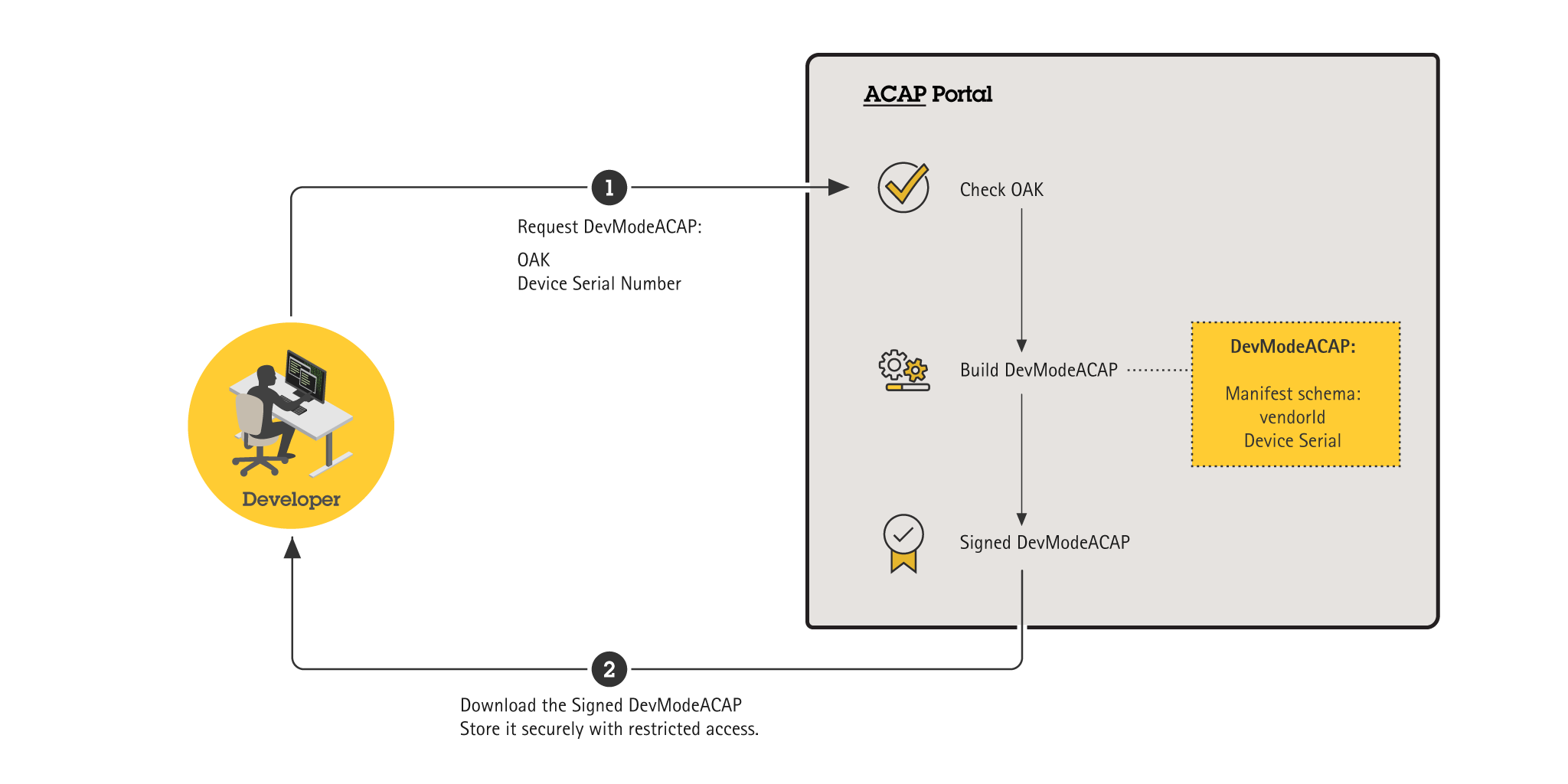
The package (.eap file) is then generated automatically, and the download starts once the build process is complete. Store it in a secure location with restricted access.
Enable Developer Mode
After downloading the Developer Mode ACAP package, install it on the device. Once installed, Developer Mode is automatically enabled and configured.
Step 1: Install the Developer Mode ACAP application
You can install the application using one of the following methods:
-
Web interface: Open
https://<AXIS_DEVICE_IP>/index.html#appsin a web browser and click + Add app in the top left corner. Select the downloaded.eapfile, upload it, and complete the installation. -
Upload VAPIX API: Use the Upload Application API to upload the
.eapfile programmatically.
Step 2: Get vendorId to use
Access the Developer Mode ACAP application's index page using one of the following methods:
- Via URL: Navigate directly to
https://<AXIS_DEVICE_IP>/developer_mode/index.html. - Via OPEN button: In the device web interface, find the Developer Mode ACAP application and click the OPEN button.
There, you can find the vendorId value to use.
Step 3: Build and install your unsigned application
The Developer Mode application includes the latest
manifest schema
available when you requested it.
When installing your unsigned application,
manifest.json must be valid against that schema.
If your manifest.json uses fields introduced in a more recent schema version,
you need to
request and
enable
a new Developer Mode application.
Prepare your ACAP application under development by setting the vendorId in manifest.json. During installation, the device validates that it matches the vendorId of the installed Developer Mode ACAP application. If it doesn't match, the installation is rejected.
Once the vendorId is correctly configured, build your application, and install it on the device.
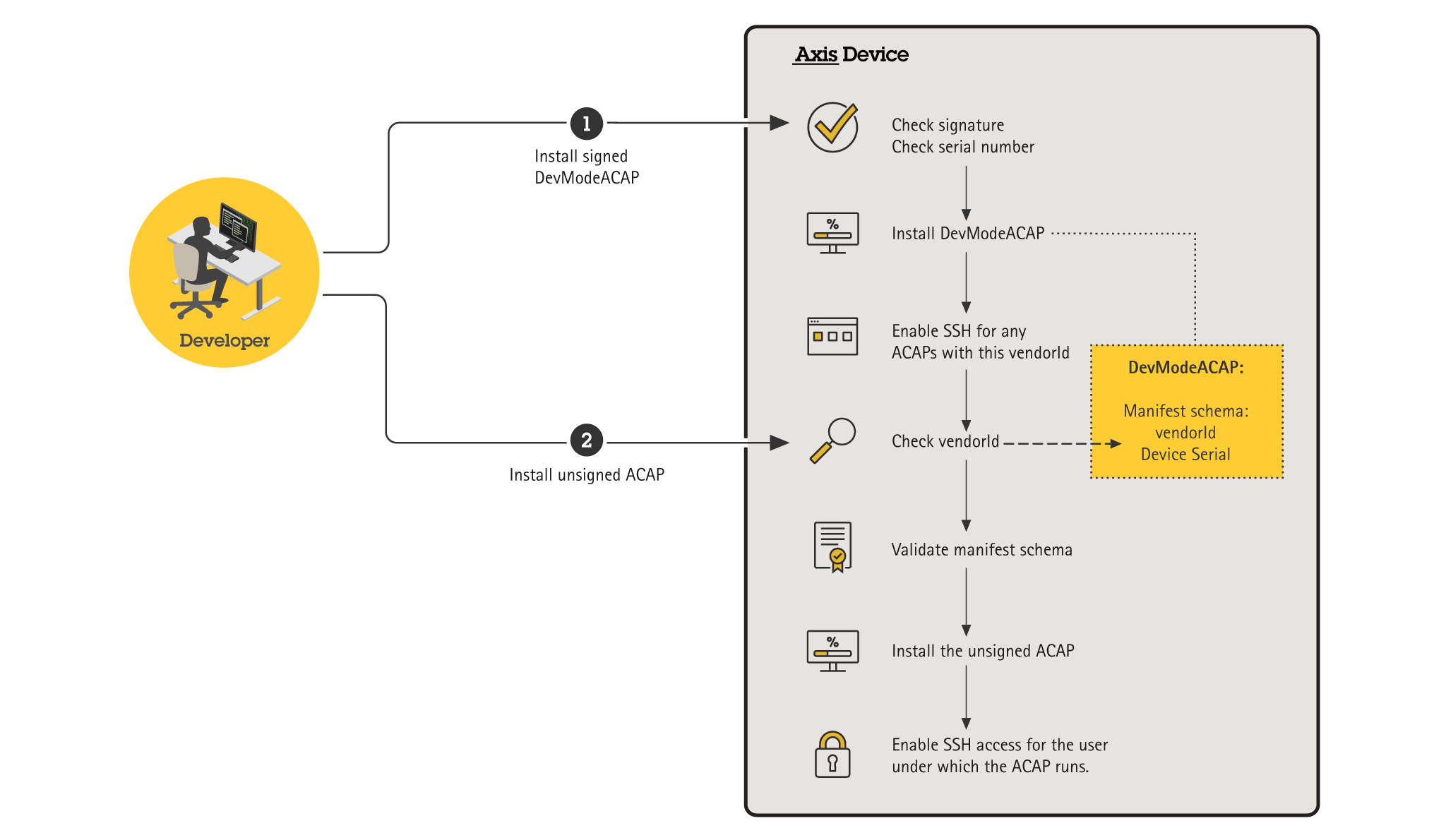
Enable SSH access for the application user
When Developer Mode is enabled on your device, an SSH account is automatically created whenever an ACAP application using a dynamic user is installed. Follow these steps to enable SSH access for the application user:
- Navigate to the device's accounts configuration page, typically at
https://<AXIS_DEVICE_IP>/index.html#system/accounts. - Scroll down to the SSH accounts section.
- Verify that the Enable SSH switch is enabled.
- Find the ACAP application user (named
acap-<appName>). - To enable SSH access for the ACAP application user:
- Set a password for it by pressing the three dots to the right and choosing Update SSH account. This is required for SSH access.
Disable Developer Mode
Developer Mode remains active as long as the Developer Mode ACAP application is installed. To disable it, you can either uninstall the Developer Mode application or restore the device firmware.
Disabling Developer Mode uninstalls all unsigned ACAP applications from the device and removes any SSH users created for application users.
Uninstall the Developer Mode ACAP application
Use one of the following methods:
-
Web interface: Go to
https://<AXIS_DEVICE_IP>/index.html#apps, click the three dots next to the Developer Mode ACAP application, and select Delete. -
Control Application VAPIX API: Use the Control Application API to uninstall the application programmatically.
Alternatively, perform a firmware Restore of the device. This removes the Developer Mode ACAP application and all other user-installed applications. You can restore the device via the web interface in Maintenance → Restore.